Create 2 – Web Tools for Differentiation of Student Assessment

Create: Using your lesson topic, create an assessment that allows students to produce a summative assessment product using web tools. Isolate one web tool that aligns with differentiation and student assessment. Post the tool to your blog. Create detailed instructions explaining to students the assessment requirements. Then, create a sample product that uses the web tool to guide your students.

Artifact: Link to the sample product in your blog.

Answer:  How do you plan to use the tool effectively with students? How does the tool differentiate the assessment? Explain.

The link to my product is: https://drive.google.com/file/d/1wRJcut-VW0lDqSHw88IXSXRb5DGRboRk/view?usp=sharing

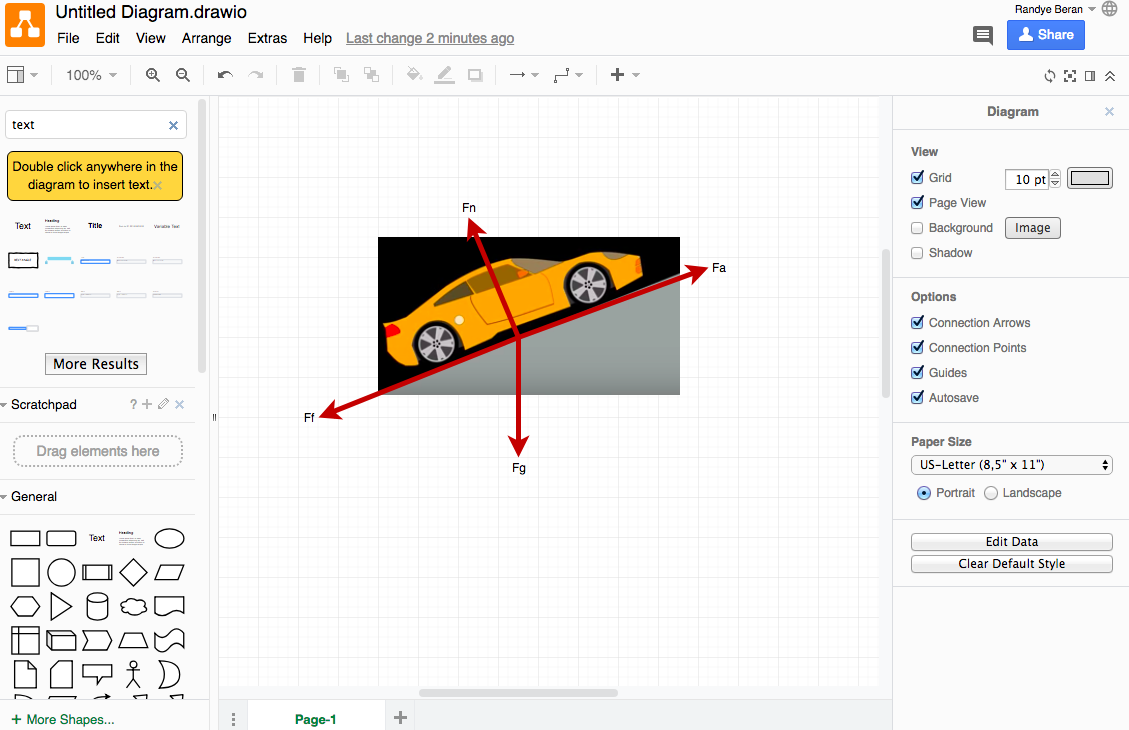
The tool I used was draw.io in order to have students demonstrate their ability to draw free-body diagrams. The student can copy the image (as I did), or create a box (as many do) to represent the object. From here they can show their calculations. This is a step that many student (on paper) chose to skip. Having this tool reinforces the importance of the FBD and allows certain students to go above and beyond, which differentiates the assessment. It is also much better than a multiple choice assessment.

Create 2 – Explore Web Tools

Research – Find five instructional web tools that offer a variety of opportunities for learners.  Link to each web tool considered in your blog.

Answer – What is the intended use for each tool? How might you use each tool in online teaching? How might a student use the tool? Is there a cost associated with the tool?

1. Peergrade “is a free online platform to facilitate peer feedback sessions with students.” I could set up an assignment, with a rubric, and allow peers to provide feedback following the rubric. This feedback spurs discussion and brings students further than if they were just completing an assignment alone.

2. Nearpod allows an instructor to “easily importing existing lessons (pdfs, jpegs, ppts) and adding interactive features such as Virtual Field Trips, 3D Objects, Quizzes, Polls, Open Ended Questions + more!” This tool makes presentations far more interactive. There is a free account but there are more features available with a paid account. Some districts offer this with your signin.

3. LiveBinders allows students to create “online binders you can combine all of your cloud documents, website links and upload your desktop documents – to then easily access, share, and update your binders from anywhere.” This is a great way for students to organize for a course and be able to share their information with anyone. Livebinder is free to use.

4. Padlet is “an online virtual “bulletin” board, where students and teachers can collaborate, reflect, share links and pictures, in a secure location.” Live binder can be set up by the instructor for use as a group or a student can use this for personal use. Padlet is free to use.

5. Sutori is a “collaborative presentation tool for the classroom for all age groups and content areas. It provides the ideal canvas for assignments and lesson plans.” This is a great way to present material and best part is its free.

Create 1 Appearance

Research: Find ten instructional websites that offer a variety of opportunities for learners.  Link to each website considered in your blog.

Answer:  Which sites exemplify sound design ideals?  Why?  Which sites do not adhere to the design elements discussed in this lesson? Why?

Artifact: Provide a screenshot of 2 websites considered to offer a compare and contrast of design elements.

Ten Websites:

  1. Delta Math
  2. PhET
  3. NASA
  4. Gizmos
  5. Khan Academy
  6. Desmos
  7. BrainPOP
  8. cK-12
  9. Cuethink
  10. Geogebra

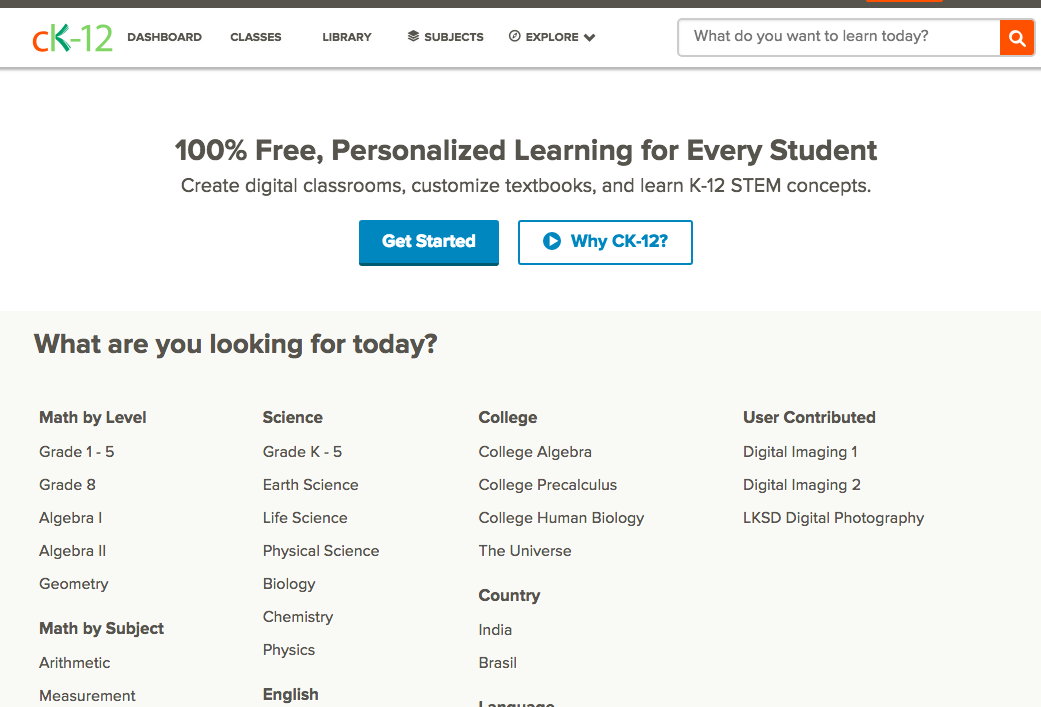
cK-12 follows all the rules. The site is easy to read, as the background is white, and all of the information is easy to locate. Students do not have to look very far, as they just have to type something into the “what do you want to learn today?” tab to be taken to various resources to help them. There is good contrast in colors, so even those that are colorblind would not have a problem.

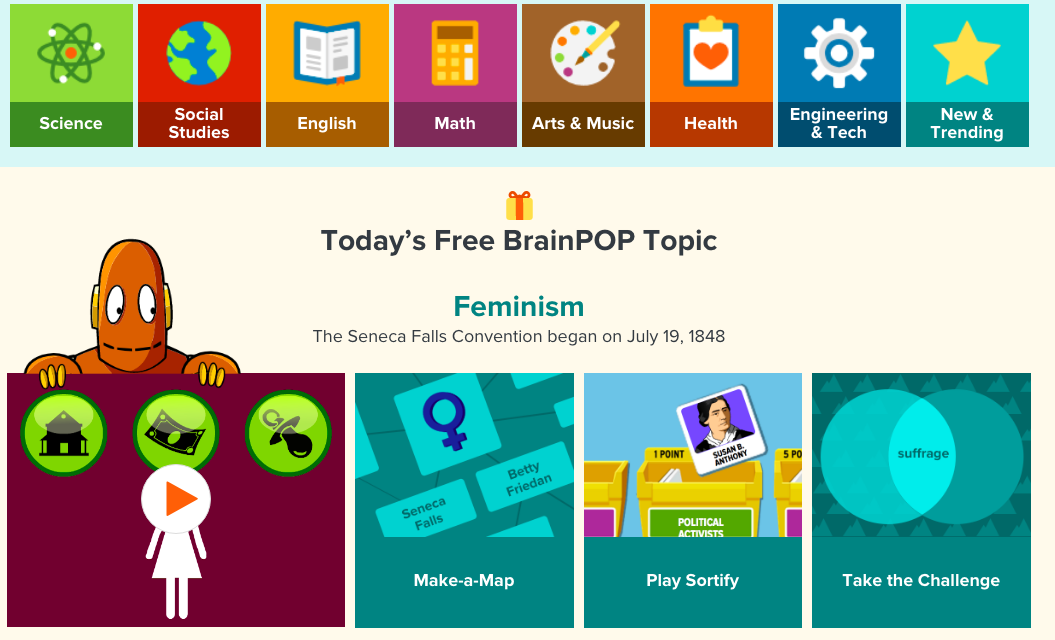
BrainPOP, while a great site, violates many of the rules. However, I can see how the colorful choices would attract children. However, many of the pages are very busy and distracting, and some of the boxes have text that lacks contrast.

Create 1- Content Map

Answer: What should be included in the Content Map? What aspects of online learning and technology are essential to integrate in the process?

Create: Isolate a web tool explored in this lesson, and then create a Content Map for the chosen topic using that web tool. Be sure to highlight technology tools used in your lesson plan.

Artifact: Include this content map and a link to the tool used in your blog.

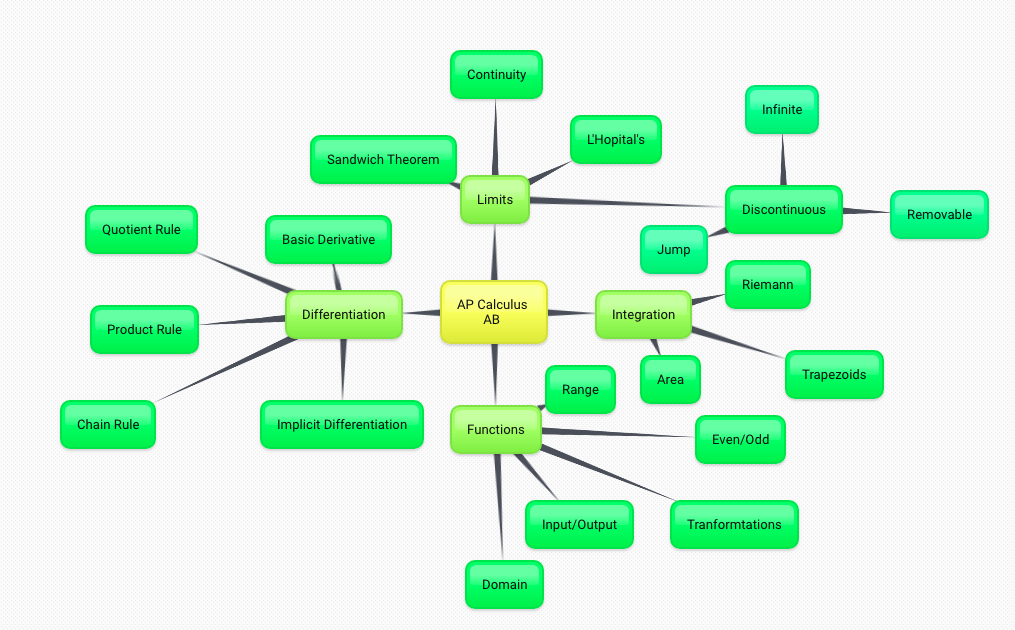
The map includes all elements of content: text, discussions, images, and multimedia, and each element is stepped out in a graphic textual display.

I used bubble.us to create the map below:

I would like to use this content map as a jumping off point in the course and the focus in on each branch, and create a content map for each of those. I would like the students to help create those content maps (I would create the basic outline and have them help me fill the rest in with their research) this would take place collaboratively. I would like to do more research, before I commit to which online tools I would use, as I would like them to be able to add onto certain parts of the content map.

Create 1 – Explore Time Management Tools

Research: Link to five time management tools in your blog. Briefly describe each tool’s use and relevance to the online world.

Answer: How is each tool used? Would the tool be most helpful in a personal or professional setting, or both? Explain.

1. Rescue Time – Provides “Detailed reports show which applications and websites you spent time on. Stay informed with a weekly email report summarizing your activities and productivity score. Use your report to better plan the new week. You can set goals to help keep you on track and improve your productivity.”

Rescue Time would be beneficial in either a personal or professional setting. In a personal setting it would be to self manage and make changes to where you spend your time. It would also be good for a parent to put on their child’s computer to manage their time better. In the same vein, businesses can put this on company computers to see where their employees spend most of their time.

2. Remember the Milk –  “An application service provider for Web-based task- and time-management. It allows users to manage tasks from a computer or smartphone, both online and offline.”

If you like lists, this is the app for you. The good part about this app is that you can work on or off line, however it need much more input from you than many other of the alternatives. I this this would be better for professional use, because it would not be good for students that can not remember to make lists in the first place.

3. Focus Booster –  “A free desktop app that aims to help improve your focus and productivity. The app uses the pomodoro technique, a popular time management technique that divides focused work sessions into manageable, 25-minute intervals (referred to as ‘pomodoros’).” 

Whether you think a positive or negative, you cannot pause the app. Therefore, you are getting actual data and discipline. I think this would be good in both professional and personal use to monitor employees or children since you get accurate pictures.

4. Toggl – “A time tracking app that allows you to track your daily activities across different platforms; providing you with detailed insights and an opportunity to optimize your workflow by identifying areas where you can improve.”

This program is good because it works with mac and pc. Toggle is really beneficial in tracking time. I think this would be best used professionally as you can monitor employees and pay accordingly.

5. Evernote – “A cloud-based software service designed for creating, organizing and storing various of media files.”

This app allows you to take notes on any devices and sync easily. You can search for your notes really easily too. The only bad thing is the free account doesn’t give you enough service options. I think this would be beneficial in either professional or personal use, as it would make note taking an keeping really easy.
Create 3 – Fair Use and TEACH Act

Answer: How might an online or blended classroom teacher use Fair Use when gathering resources for educational purposes? What observations have you made about Fair Use and the TEACH Act and how has it changed your approach to finding reliable content for your students?

When gathering resources for educational purposes, an instructor must use the Fair Use and TEACH Acts Four Factor Test, which states the four factor that must be taken into consideration are: (1) the purpose of use, (2) the nature of the work, (3) the portion used as it relates to the whole, and (4) the effect on the market.

The basic difference between the Fair Use and TEACH Act is that the Fair use is for anyone looking for an educational resource, while the TEACH Act is specifically for educators and media that is copied must be used in a asynchronous classroom setting.

I will now be much more careful now that I know the Fair Use policy, knowing that I can copy a few paragraphs for students that are necessary. It does not follow the Fair Use to copy a text to avoid buying it.

Navigate Reflection

Standard B: The online teacher understands and is able to use a range of technologies, both existing and emerging, that effectively support student learning and engagement in the online environment.


Standard I: The online teacher demonstrates competency in using data from assessments and other data sources to modify content and to guide student learning.

Standard K: The online teacher arranges media and content to help students and teachers transfer knowledge most effectively in the online environment.

Answer in a complete paragraph response: How has the Navigate module prepared you to meet each standard listed above? Link to or provide specific examples from your work in Navigate. What strategies will you take away from the Participate module and apply to your teaching?  What lessons were most beneficial for you?

The Navigate Module helped me prepare for Standard B be working on Navigate 3: LMS Reporting because I found the most relevant tool was the collaboration amongst peers. The involvement with their peers is something that definitely keeps students engaged.

The Navigate Module helped me prepare for Standard I by working on Navigate 3- LMS Tool Categories because I understand the data that the gradebook provides including the reports you can gain from it. This will help guide instruction and the creation of assessments.

The Navigate Module helped me prepare for Standard K by working on Navigate 3: Course Creation within an LMS by practicing uploading content for a course shell and Navigate 1 – Screen Capture by practicing creating a screen captured lesson. Both skills will be invaluable to online teaching.

Navigate 1 – Screen Capture

Explore: Try-out a screencasting tool of your choice.  

Create: Create a screen capture sample lesson (under 2 minutes) in which you explain a educational concept for students.

Artifact: Post a link to your screen capture sample lesson in your blog. Please be sure this is publicly available to view with no sign-in required.

Answer: How does screen capture function in the online classroom? How would the integration of screen capture modify teaching methods?

Screen capture is a great way to talk someone through something and would be very good for students to see something a second time. After a “live session” I could see putting this up so they can go back and use it s a refresher. Pardon the first try at this strategy, I will get better at it!

Navigate 1 – Synchronous Vendor Market

Explore: Select one of the synchronous vendor applications listed in this lesson. Try-out the application.  Think about how you would use this application to host a live lesson with students.

Answer: What synchronous vendor application/tool did you select? Using the application, what did you experience using the synchronous learning tool? Was the task easy? Challenging? Did the process present problems? Document the responses and general reflections on synchronous learning and the recorded session in your blog.

I have used Google Hangouts in the past for personal use. I can imagine it being easy and helpful to use with students, since it is free as part of a gmail account. If a student does not have a gmail account it is simple to sign up for one and have access to this as well as many other features. The only challenges one would experience is you must add people to you contact before you can access them in google hangouts.

This would be a valuable tool for synchronous learning as is would give the student and instructor access to each other as they would both be logged on at the same time and be able to have good conversation.

Navigate 1 – Commercial vs. Open Source Virtual Classrooms

Reflect: Consider for a moment the role of synchronous learning in the virtual classroom and the exploration of various synchronous applications. Using the lesson as a point of reference, discuss the strengths and weaknesses of the open source versus commercial software in relation to synchronous learning in your blog

Answer: When would an open source application take precedence over a commercial product? What are the issues when choosing between Open Source vs. Commercial Software?

The strength of open source in synchronous learning is that everyone has access and it does not cost money. The weakness is that there is no help for troubleshooting for problems. The strength of commercial software is that there are constant updates and if something goes wrong there is help. The weakness is the cost, not every student may have access to it if you have to pay extra for the service.

An open source application take precedence over a commercial product in the following instances: a digital learning community could require membership to use an open source; many groups might use open sources when there are no funds for commercial software.

The issues when choosing between Open Source vs. Commercial Software often deal with the features offered. Many sites are free up to a point and tools beyond that you must pay for. Also, an open source has minimum customer service, so if you are looking to get help, this choice is not for you.