Navigate 3 – Course Creation within LMS

Explore: After selecting and downloading a trial LMS, create a course shell and make note of the various tools available.

 Create: Then, select content to upload to the course shell. To assist with this process, please refer to the content material delineated below.

Answer: While the content loads, note the steps completed to fully load the package and make it viewable. What were those steps? Is it important to follow these steps? Write a description of the experience in your blog.

I made a course shell in Moodle and then began to upload content. I first had to turn the editing on and located the area where I want the content to appear. I clicked the section title and then clicked add an activity. I selected the folder I wanted and clicked add. This was a zip file so next I unzipped it, and to make sure students get the whole file, I click show download folder button. Then all I had to do was click save.

It is important to follow these steps to make sure material is accessible to students.

Navigate 2: Roles: Learning Management System and Student Information System

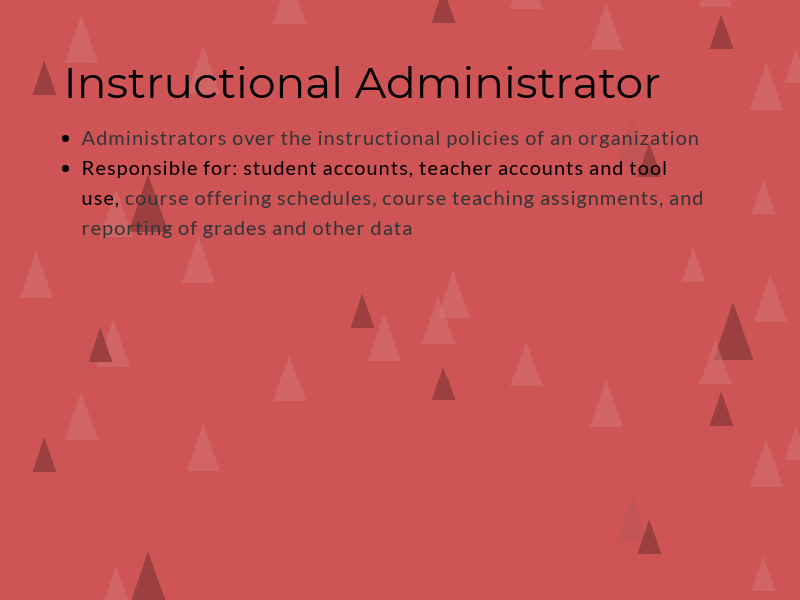
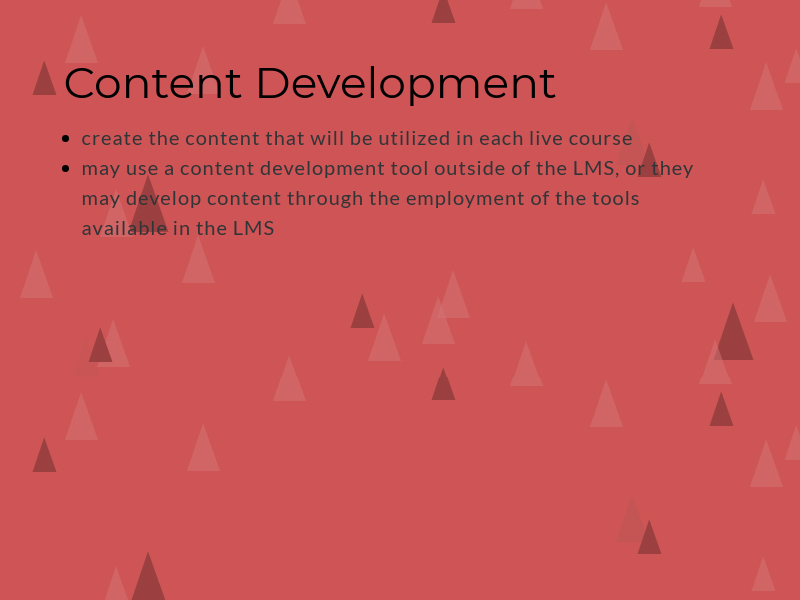
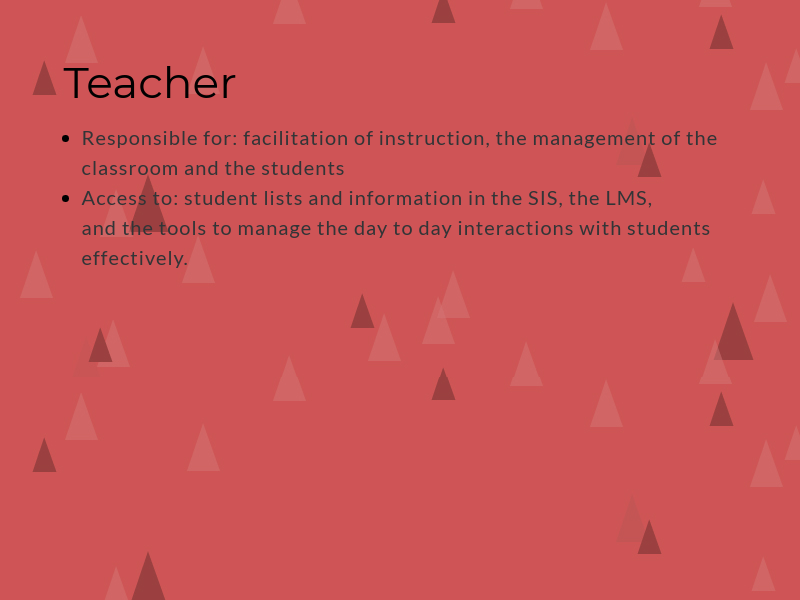
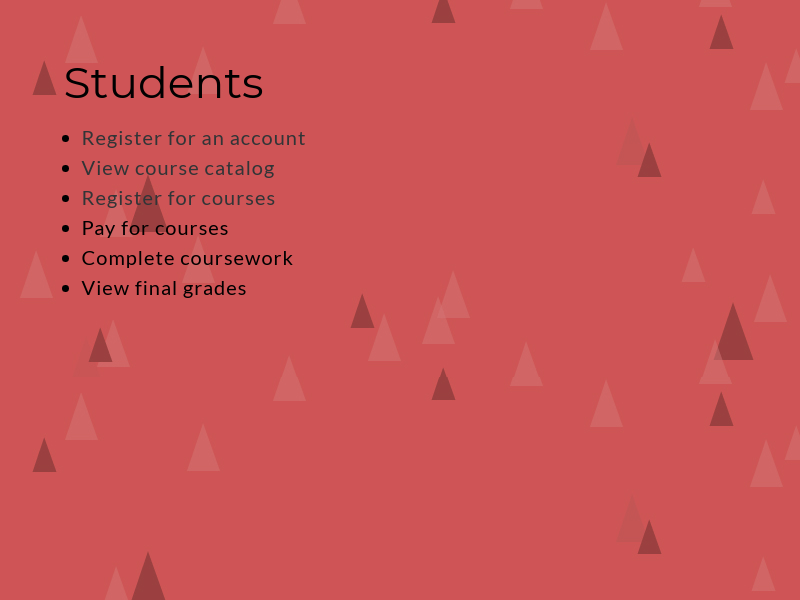
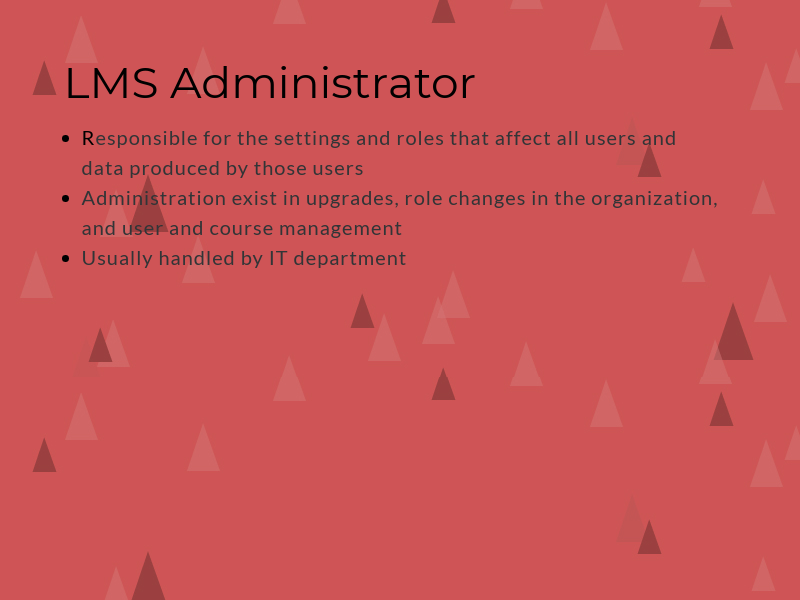
Explore: Consider the role of teacher, facilitator, course developer, instructional administrator and LMS administrator. Explore the various roles and responsibilities within the online learning community.

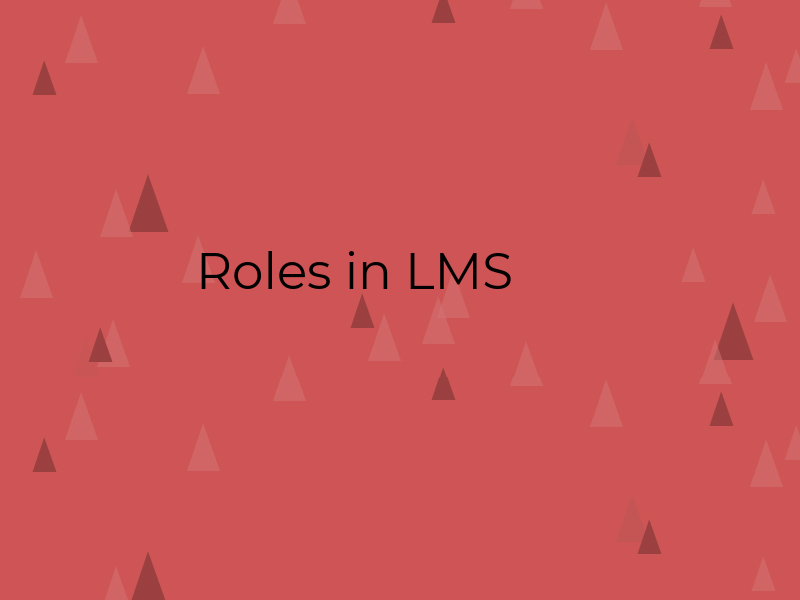
Create: Using the information from this lesson, create a digital resource that highlights the various roles in a learning management system.

Artifact: The created, finished product may come in one or more of the following forms: a digital chart/poster/info-graphic, an audio recording or podcast, a digital slideshow, or a digital video.

https://create.piktochart.com/output/39836103-untitled-presentation

Navigate 3- LMS Tool Categories

Explore: Identify the major tool categories in Learning Management Systems.

Answer: What are the most relevant features offered within an LMS?  Which features directly relate to effective online instruction?  How might you use these features in the online classroom environment?

Tools 

  1. Organization level announcements
  2. Blogs – private space for users used as a reflection tool, users can get comments from outside of the LMS
  3. Journals – area to write a narrative
  4. Glossary – defines common terms or acronyms used throughout the course
  5. E-mail – this is often used as an internal function between instructor and student or student to student

Teacher information consists of class lists (listing of those enrolled in the coarse), the calendar (a list of class deadlines and special events), and the bulletin board/class news (provides news for about the course the students are enrolled in).

Course Administration consists of the course home (components that organize the information in different sections) and the syllabus (handbook policy reminders, teacher content information, course description, course standards, grading categories, and assignment schedule).

Course Content and LOR consist of import/export options (the ability to move content in and out of the course), course authoring (can be built by using LMS built-in tools or other external tools), course packages (these are  programmed set of rules that allows a learner to “go through” a course and can be imported and exported to and from LMS’s), learning object repository (the place in which all learning resources are stored managed and shared).

Course Assessments consist of tests and quizzes, rubrics, and dropbox. Instructors must be able to assess students work efficiently and effectively.

Communication consists of email (an option inside the LMS where teachers and students can exchange digital messages) and discussion boards (which encourage student interaction). The following are the common communication tools in LMSs: email, notifications, discussions, instant messaging, blogs, social profiles, calendars, and agents.

Grades/Gradebook consists of feedback and progress for the learner. Grade books can be set up various ways, depending on how the instructor is comfortable and what best serves the learner.
Navigate 3 – LMS Reporting

Explore: Identify the major tool categories in Learning Management Systems.

Answer: What are the most relevant features offered within an LMS?  Which features directly relate to effective online instruction?  How might you use these features in the online classroom environment?

Tools 

  1. Organization level announcements
  2. Blogs – private space for users used as a reflection tool, users can get comments from outside of the LMS
  3. Journals – area to write a narrative
  4. Glossary – defines common terms or acronyms used throughout the course
  5. E-mail – this is often used as an internal function between instructor and student or student to student

The most relevant features of an LMS are the collaboration tools. The ability for the learner to collaborate with peers and the instructor is invaluable. Otherwise online learning becomes extremely isolating. More than this, collaborating allows them to grow far more than they would without the collaboration.

Collaboration can come in many forms, such as: discussion boards, online chats (one-to-one or group chats), blogs/journals/wikis, messaging, and user groups.

Navigate 2 – LMS Trends

Explore: Research trends in digital learning and select the trend that will make the most impact on digital learning over the next five years.

Answer: Which trend did you select? How do you foresee this trend impacting online learning?  Will this trend be a learning fad or will it become an essential part of online learning in the future? Explain.

A big trend in digital learning is social learning. Spellman-Cann, Luong, Hendricks, and Roberts define social presence as “the ability of learners to project their personal characteristics into the community of inquiry, thereby presenting themselves as ‘real people’’ (Garrison, Anderson & Archer, 1999, p. 89). It also refers to participants’ ability to engage meaningfully in a community, through developing interpersonal relationships that allow them to communicate openly and freely.” Social learning is even more important in an online setting to avoid isolation in the learner. They must collaborate between individuals through various modes, such as forums, informal chat sessions, sharing sessions, and learning circles. 

As online learning becomes more popular through LMS, the need to find ways for students to become social learners is more important than ever this trend will increase.

Navigate 2 – Tools for Deciding on an LMS

Explore: Which LMS is best?  Consolidate the information about open and commercial LMS presented in this lesson.  Select your favorite LMS.

Answer: Which LMS is best? How does the selected LMS meet the needs of all stakeholders, including administrators, students, teachers and faculty, instructional technology, development, support, and parents? How does the selected LMS align with the initiatives, growth, and technological needs of your organization?

The LMS I have chosen as best is Moodle, which is a free LMS unlike some of the others that are paid for. This system would work best to meets the needs of all stakeholders at my present school, by helping teachers become students centered, collaborative and technology driven.

I believe that Moodle would also make PD effortless, by being able to offer synchronous and asynchronous PD depending on teacher preference.  Administrators would also be able to keep track of who is turning grades or other important paper work – helping to keep others accountable.

Moodle would align with the school and district initiatives of individual learning and PLCs. Moodle would allow you to give a particular assignment to an entire class(es) or just a particular student or set of students. This would also be helpful in sharing with a PLC.

Navigate 1 – Delineating Asynchronous and Synchronous Learning

Create: Using the information from this lesson, create a digital resource that explains the differences in the asynchronous and synchronous methods of delivery.

Artifact: The created, finished product may come in one or more of the following forms: a digital chart/poster, an audio recording or podcast, a digital slideshow, or a digital video.

https://infograph.venngage.com/ps/nre3RKUA9Ow/synchronous-v-asynchronous-comparison

I have created a digital poster comparing the two in the link above.

Participate Reflection

Standard C: The online teacher plans, designs, and incorporates strategies to encourage active learning, application, interaction, participation, and collaboration in the online environment.

Standard E: The online teacher models, guides, and encourages legal, ethical, and safe behavior related to technology use.

Standard J: The online teacher interacts in a professional, effective manner with colleagues, parents, and other members of the community to support students’ success.

 Answer in a complete paragraph response: How has the Participate module prepared you to meet each standard listed above? Link to or provide specific examples from your work in Participate. What strategies will you take away from the Participate module and apply to your teaching?  What lessons were most beneficial for you?

The Participate Module helped me prepare for Standard C be working on Participate 2-Collecting Reputable Digital Resources. Creating a folder of resources is the beginning to any good lesson and will help me prepare better online lessons.

The Participate Module helped me prepare for Standard E by working on Participate 3- Digital Resources and Netiquette and Participate 4 – Digital Safety and Security. Both of these activities helped me create resources for students to teach them effective uses of the internet and the digital learning environment.

The Participate Module helped me prepare for Standard J by working on Participate 1 -Joining a DLC. Joining DLCs will give good practice in interacting with professionalism and will provide valuable resources to use for my students.

Participate 4 – Digital Health

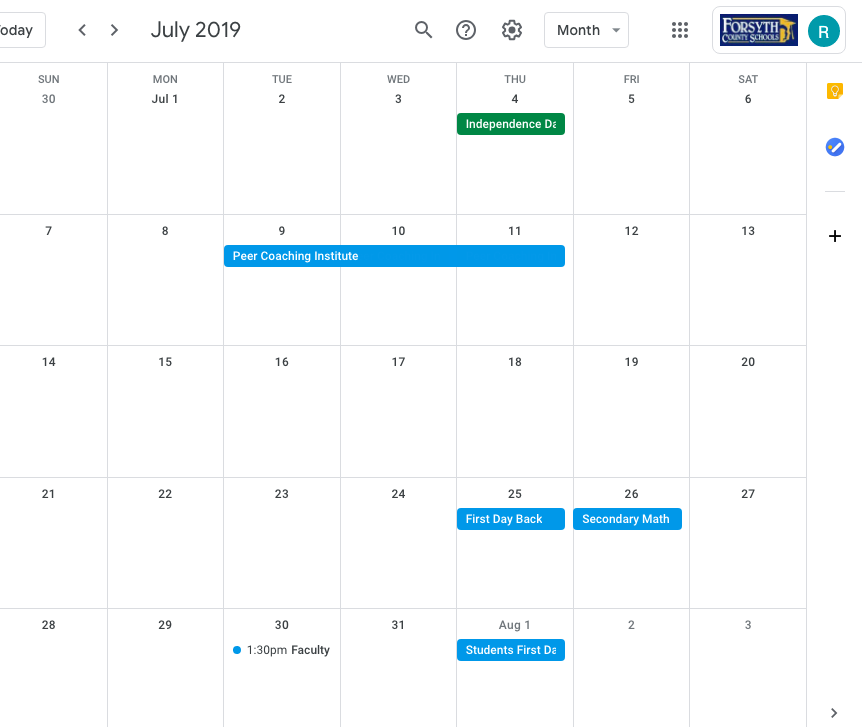
Create: Create a digital calendar containing scheduled appointments designed to improve digital health. Embed the calendar (or include a screenshot of the calendar) in your blog.

Answer: How did you modify your technology habits? What is the most proactive means of ensuring the most balanced blend of technology and well-being? What can students and teachers do to make sure they get the most from technology while simultaneously safeguarding good health?

It seems technology has overtaken our lives. I will force myself to stop using technology (including my phone) at 8:30 PM everyday. I will set an alarm for myself on my phone so that I do not exceed this time. As my daughter gets older I will monitor her use of technology as well and be more conscious of my example while she is awake.

Students also need to shut down technology at a certain point. I collect phones in class so that their full attention is on learning. Setting due dates at a certain time (i.e. 8 PM) is better than leaving is to the midnight standard so students will be forced to stop.

Participate 4 – Digital Safety and Security

Create: Develop a digital resource which addresses the following questions.

a. What is the most important step we can take in terms of ensuring our digital safety?

b. What strategies can we take to help our students consistently keep digital safety in the forefront of their minds?

Artifact: The created, finished product may come in one or more of the following forms: a digital chart/poster, an audio recording or poster, a digital slideshow, or a digital video.

Include a direct link to (or embed) the artifact you created in your blog.

Answer: How might your artifact be implemented in a learning environment?

The link below is a digital poster I will use in the learning environment:

https://infograph.venngage.com/ps/koSGvCSG11Q/digital-footprint

In the beginning of a course I would go over the content of the poster and ask pointed questions on how they feel about what they leave behind digitally.